
Import a Full Website Demo
You can easily import one of the pre-made website demos directly from your WordPress admin panel by navigating to pixfort > Demo Import > Demos. For example:
pixfort Theme > Demo Import > Demos
Setup Advice
It’s recommended to install the demo content on a fresh WordPress setup without existing content, as this helps avoid potential layout or styling conflicts.
For more details, see the article: How to Reset Your WordPress Website.
Import Individual Templates
You can easily import Pages or Sections from any theme demo to your website using the pixfort Templates Library in Elementor Page Builder following the steps below:
Add a New Page (skip this step if you already have a page).
WordPress Panel > Pages > Add New
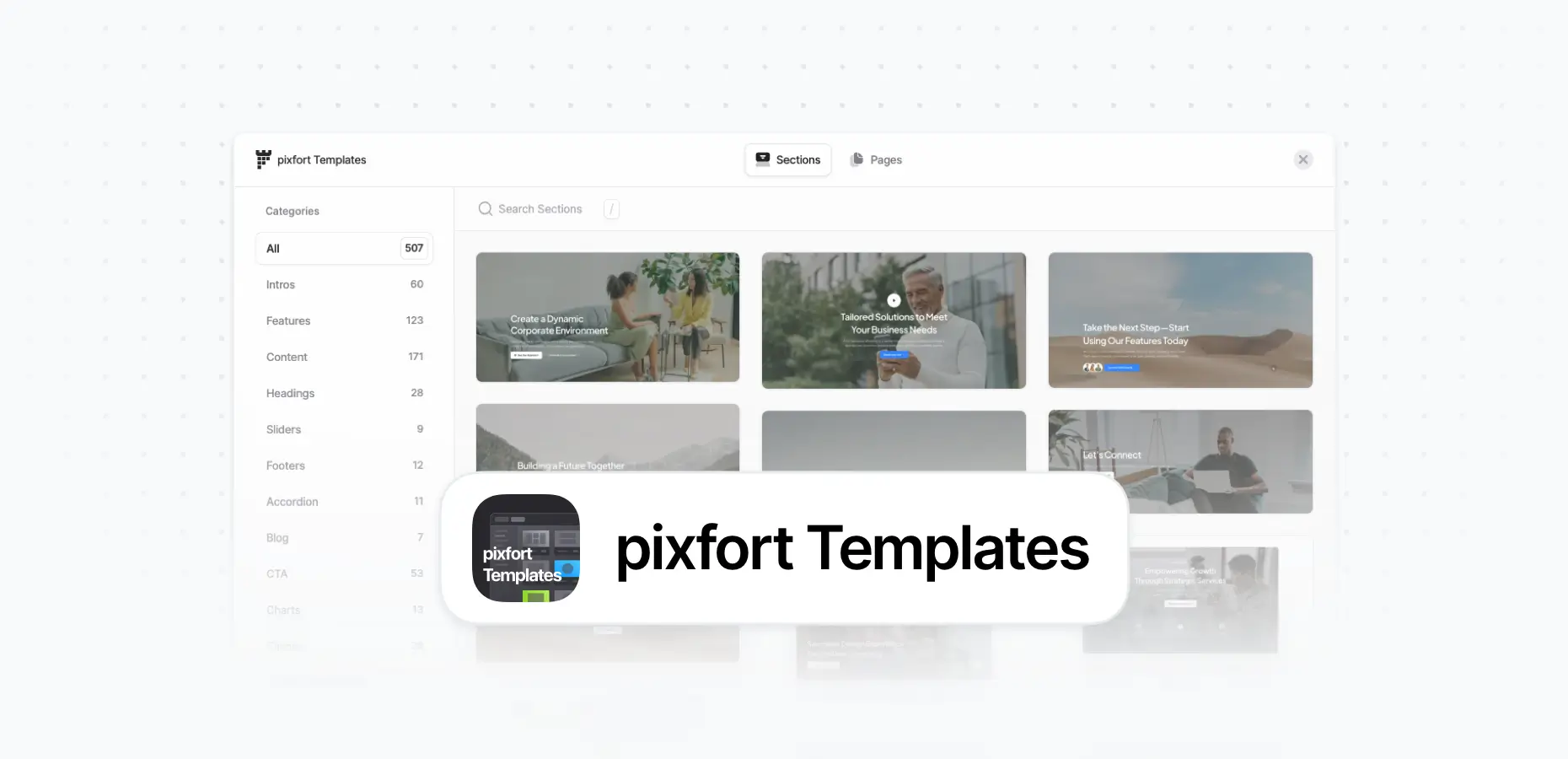
Edit the page in Elementor Page Builder and open the pixfort Templates Library, where you can choose to import sections or pages depending on your needs
Elementor Page Builder > pixfort Templates Library
Good to know
You can hide the Page Intro Section (section with page title and breadcrumbs) by setting the Hide Top Area (Intro) option to Yes.
For more details, see the article: How to Disable Page Intro Section
Add Website Header
Check the article below to learn how to create website header.
Add Website Footer

Check the article below to learn how to create website footer.
Add Popups

Check the article below to learn how to create website footer.
Add a Blog Page

Add a Portfolio Page

Add a WooCommerce Shop
Add a Contact Form 7
Next: Check More Articles to Get Started
Discover more helpful articles to guide you through customizing your site and making the most of the pixfort WordPress Theme.