You can easily add accordions to your page in the pixfort WordPress Theme using Elementor. You can either import a premade accordion using pixfort Templates, or create a fully custom accordion using the Accordion element from pixfort Elements.
To create an accordion in Elementor from scratch, follow the steps below:
How to Add Accordions
Drag the Accordion element from pixfort Elements (in the left sidebar) into your page.
The Animated Background Effects feature allows you to add dynamic and visually engaging backgrounds to your layouts. With just a few clicks, you can apply smooth animated effects to any container, helping you create more modern and interactive sections on...
The Scroll Effects feature allows you to add smooth, scroll-based transitions to elements, bringing motion and interactivity to your layouts. Using dynamic transformations tied to scroll position, you can create more engaging and visually rich pages — directly inside the...
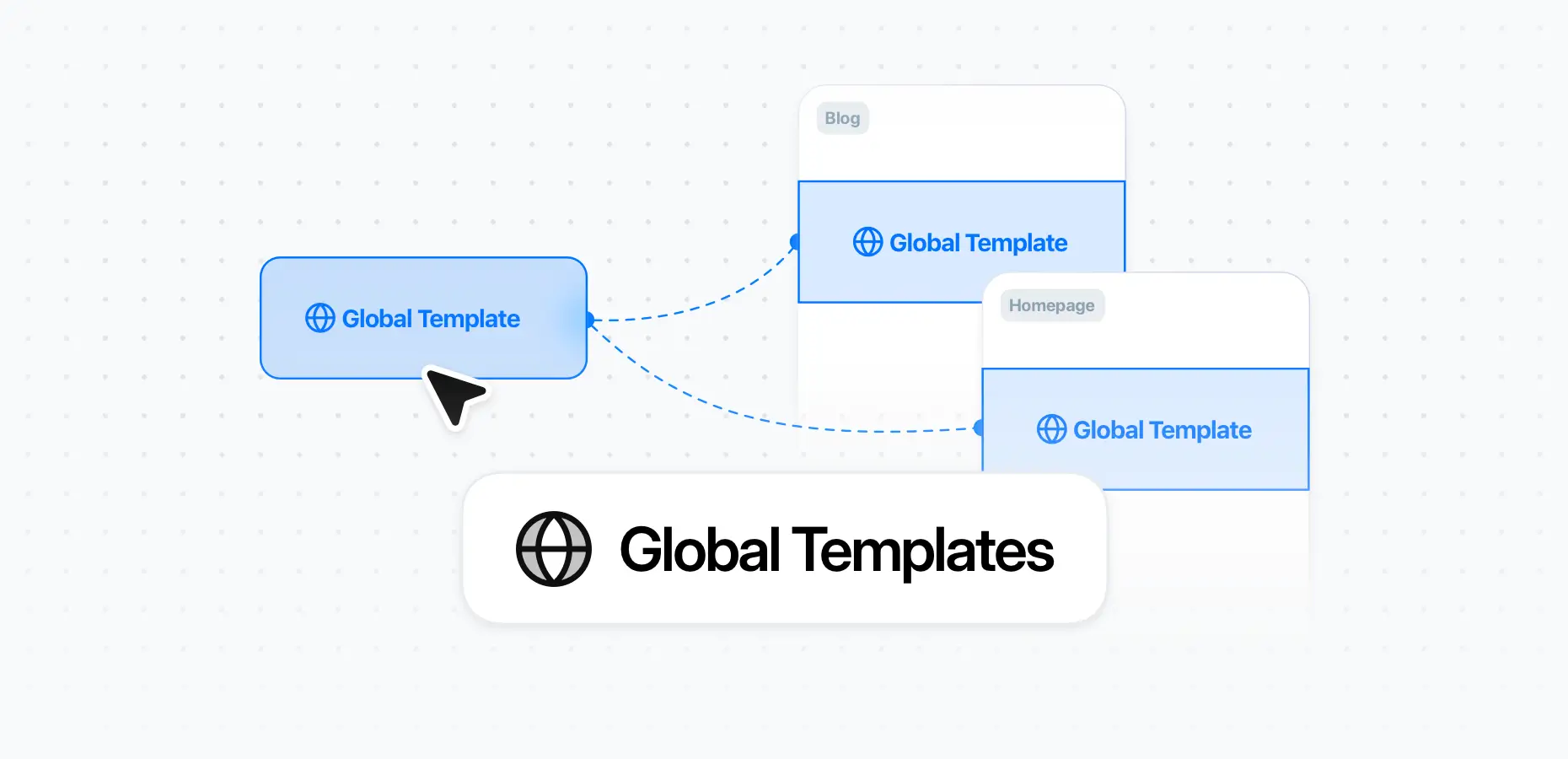
The Theme Builder in the pixfort theme supports creating Templates, a powerful feature that allows you to create reusable layout sections that can be used across multiple pages on your site. This helps you maintain consistency and update shared content...