
The Theme Builder in the pixfort theme supports creating Page Templates, a powerful feature that allows you to design and assign custom layouts for your website’s post types, like Posts, Pages, Archives, and Search Results using Elementor page builder.
This opens a new level of control and customization over your website’s structure, enabling you to go far beyond the default layouts provided in the Theme Options.
What Are Page Templates?
Page Templates are custom-designed and reusable page layouts that can be used to override the default layout provided by the theme. Unlike static layouts or individually edited pages, page templates allow you to dynamically control the structure and content of posts, archives, search results, or any normal page type using the pixfort Theme Builder.

Pages Templates
Understanding Default Page Layouts
Before diving into custom page templates, it’s important to understand how WordPress and the pixfort theme handle page layouts by default:
Posts
By default, post layouts are defined via Theme Options > Blog, where you can choose a global post page layout style. With the Theme Builder, you can now override this and assign a custom post template, even for specific posts or categories.
Archive & Search Results
These pages (e.g., category archives, tag archives, and search results) inherit the global settings from Theme Options > Blog. With the Theme Builder, you can create advanced layouts tailored for archive types or search experiences.
Pages
Normal pages use global settings from Theme Options > Pages.
The content of normal pages can be created using the page builder. If you’re looking for more advanced control with dynamic content, the page templates in the Theme Builder allow you to build fully custom dynamic layouts and assign them to specific pages. For example, a custom job description template with dynamic title, featured image, and content.
Go to Theme Builder > Post, Page, Archive or Search
For example, to create a page template for posts, go to Theme Builder > Post, then click on Add New Post Template and give your template a name.

Theme Builder > Choose Template Type > Add New Template (e.g. Post)
Set Display Conditions and Publish
select the Display Conditions to choose on which pages this template should appear.
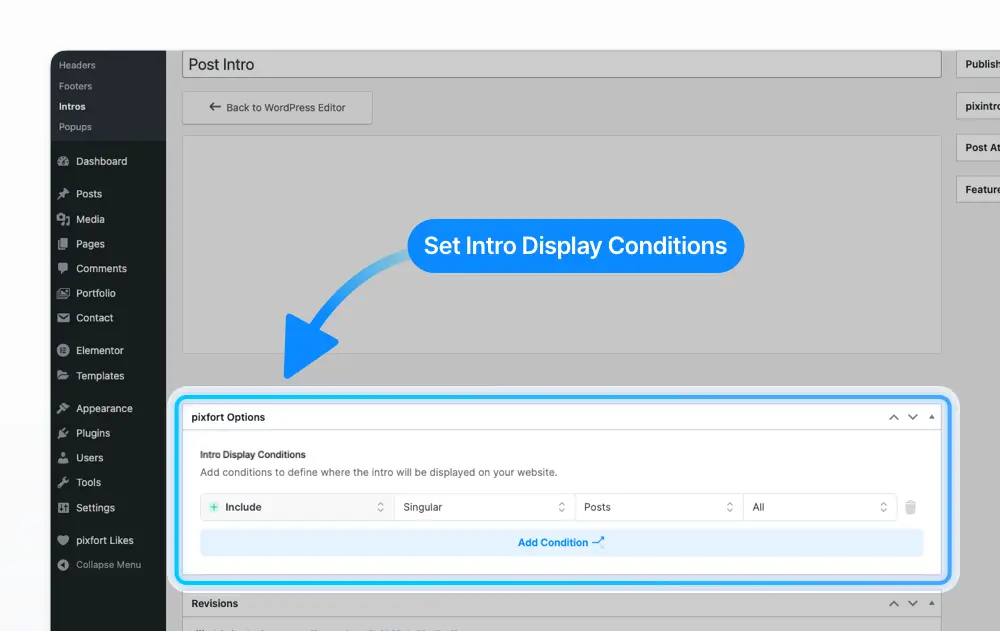
Theme Builder > Template (e.g. Post) > pixfort Options > Display Conditions
Add and Edit Content with Elementor
To add and edit the content of your template, click the Edit with Elementor button to open the Elementor Page Builder.

Theme Builder > Template (e.g. Post) > Edit with Elementor
Now you can start adding elements to build your template.
In addition to using the default pixfort Elements. Depending on the type of page template you’re creating (for example, a post template), you’ll see a set of Dynamic Elements appear at the top of the pixfort Elements panel in the left sidebar. These dynamic elements are specific to the selected template type and can fetch content dynamically from the current post. For example, displaying the post content.

Dynamic Elements
You can also use Dynamic Tags to automatically pull content like the current page title, featured image, post meta, or custom fields

Use Dynamic Tags (e.g. Page Title)


