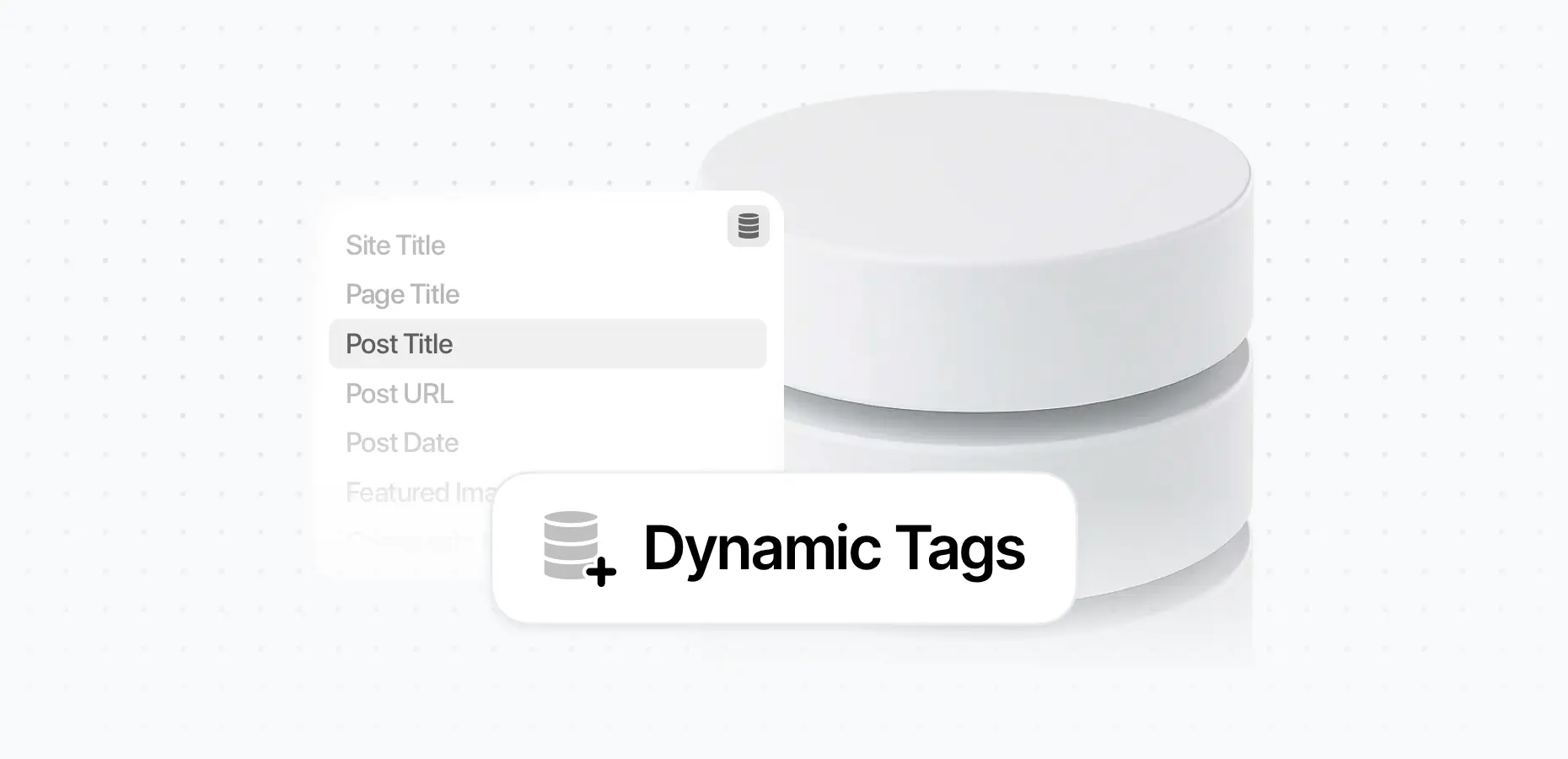
Dynamic Tags

Dynamic Tags

Using Dynamic Tags in Elementor

Dynamic Tags in Elementor allow you to insert dynamic content into your designs — content that updates automatically based on the page, post, or context being viewed. This feature is extremely useful when building reusable layouts like custom page templates or intros.

What Are Dynamic Tags?

Dynamic Tags in Elementor are smart placeholders that automatically pull in data from your WordPress site. For example, instead of writing a static page title, you can insert a dynamic tag that displays the actual title of the current page.

You can insert dynamic tags into most Elementor widgets that have a text, image, or link field. This feature is extremely useful when building reusable layouts like custom page templates or intros.

How to Use Dynamic Tags

  1. Open the widget settings in Elementor (e.g. a Heading or Image widget)

  2. Look for the Dynamic Tags icon ( database symbol) next to a field

  3. Click the icon to open the list of available tags

  4. Choose the tag you want to use (e.g. Post Title)

  5. The field will now display the dynamic content when previewed or published

Image link

Example of add Dynamic Tags

Good to know

You can enhance your use of Dynamic Tags by adding Before, After, and Fallback text. This is especially useful for maintaining layout consistency and ensuring a value is always shown.

To access these options, click the 🔧 wrench icon to open the Advanced options. Here, you can add:

  • Before: Text to display before the dynamic content

  • After: Text to display after the dynamic content

  • Fallback: Text to show if the dynamic data is empty

Image link

Add Before, After, and Fallback text

pixfort
pixfort
Support Team

Hey, this is pixfort support team, if you still need help you can always reach us via your pixfort account

Related Posts

Search

Start typing to search for a specific article on our website

Made with Popup Builder
Image link
Hey there

Search for a specific article

Get started

Check useful guides to get started

Still need Help?

Send us a support message

Our usual reply time: 1 Business day