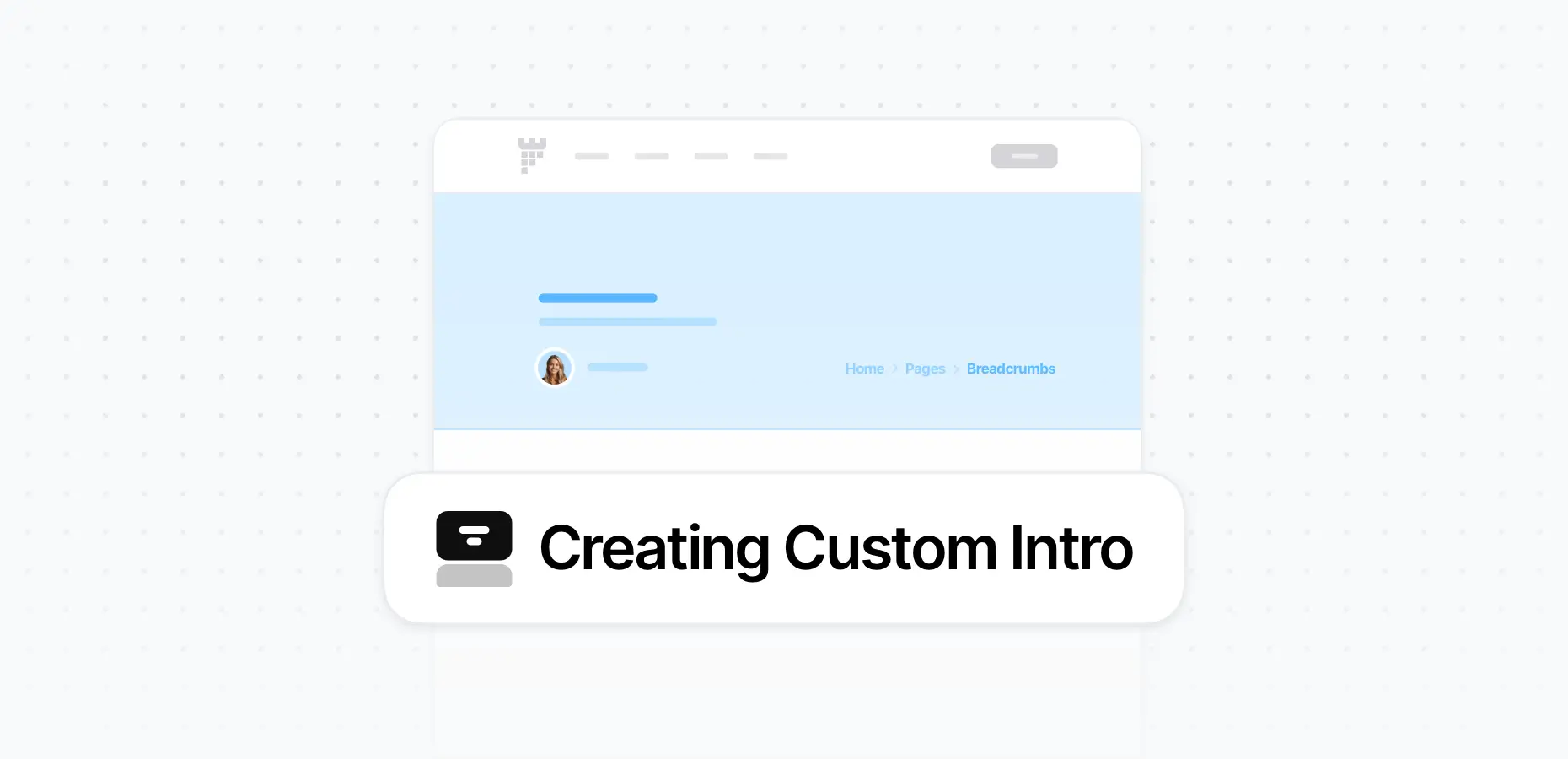

What's an Intro Section
The Intro section is the top section that appears at the beginning of your pages — often referred to as the page title area. By default, the pixfort theme includes a built-in intro section that displays the page title and breadcrumbs, and which can be customized directly from the Theme Options.

Default Intro Section
However, with the Custom Intro feature in the pixfort Theme Builder, you can go beyond the default layout and design fully custom intros using Elementor — giving you full control over the structure, content, and styling.
You can also use Dynamic Tags to insert dynamic data such as the current page title, featured image, post meta, and more — opening up a wide range of design possibilities. These custom intros can then be assigned to specific pages or post types based on your needs, allowing you to tailor the experience on each page individually.
Default vs Custom Intro
Default Intro
Automatically displayed at the top of pages, includes page title and breadcrumbs. You can modify its layout, typography, spacing, and other settings via Theme Options > Pages, Blog, Portfolio or Shop > Intro.
Custom Intro
Designed using Elementor in the Theme Builder. Offers full layout control and can be assigned conditionally to specific pages, posts, archives, or templates.
You can also use Dynamic Tags to insert dynamic data such as the current page title, featured image, post meta, and more — opening up a wide range of customization possibilities.
Go to Theme Builder > Intros
To create a new intro, go to Theme Builder > Intros, then click on Add New Intro Item.
Give your intro a name.

Theme Builder > Intros > Add New Intro Item
Set Display Intro Conditions and Publish
select the Intro Display Conditions to choose on which pages this Intro section should appear.
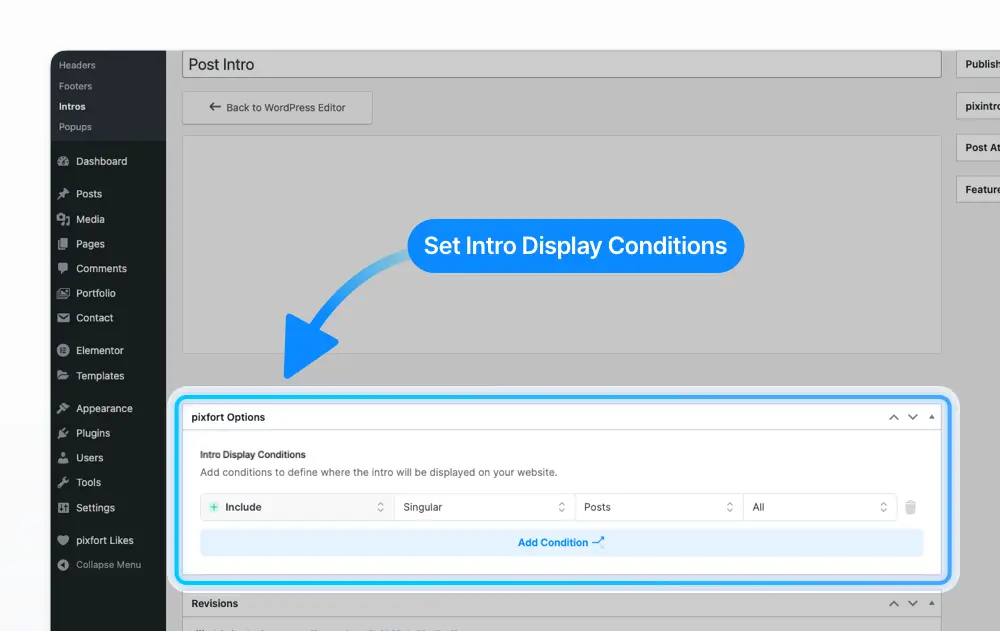
Intros > Edit Your Intro > pixfort Options > Intro Display Conditions
Add and Edit Content with Elementor
To add and edit the content of your Intro, click the Edit with Elementor button to open the Elementor Page Builder.

Intros > Edit Your Intro > Edit with Elementor
Add elements such as titles, subtitles, buttons, backgrounds, or dynamic elements (e.g. breadcrumbs).
You can also use Dynamic Tags to automatically pull content like the current page title, featured image, post meta, or custom fields

Use Dynamic Tags (e.g. Page Title)


