
You can use Contact Form 7 to add custom contact forms anywhere on your site — including pages, popups, footers, and more — allowing visitors to send messages directly to your email.
Install Contact Form 7 Plugin
To install Contact Form 7 plugin, go to your pixfort Dashboard, then install Contact Form 7 from the plugins section.
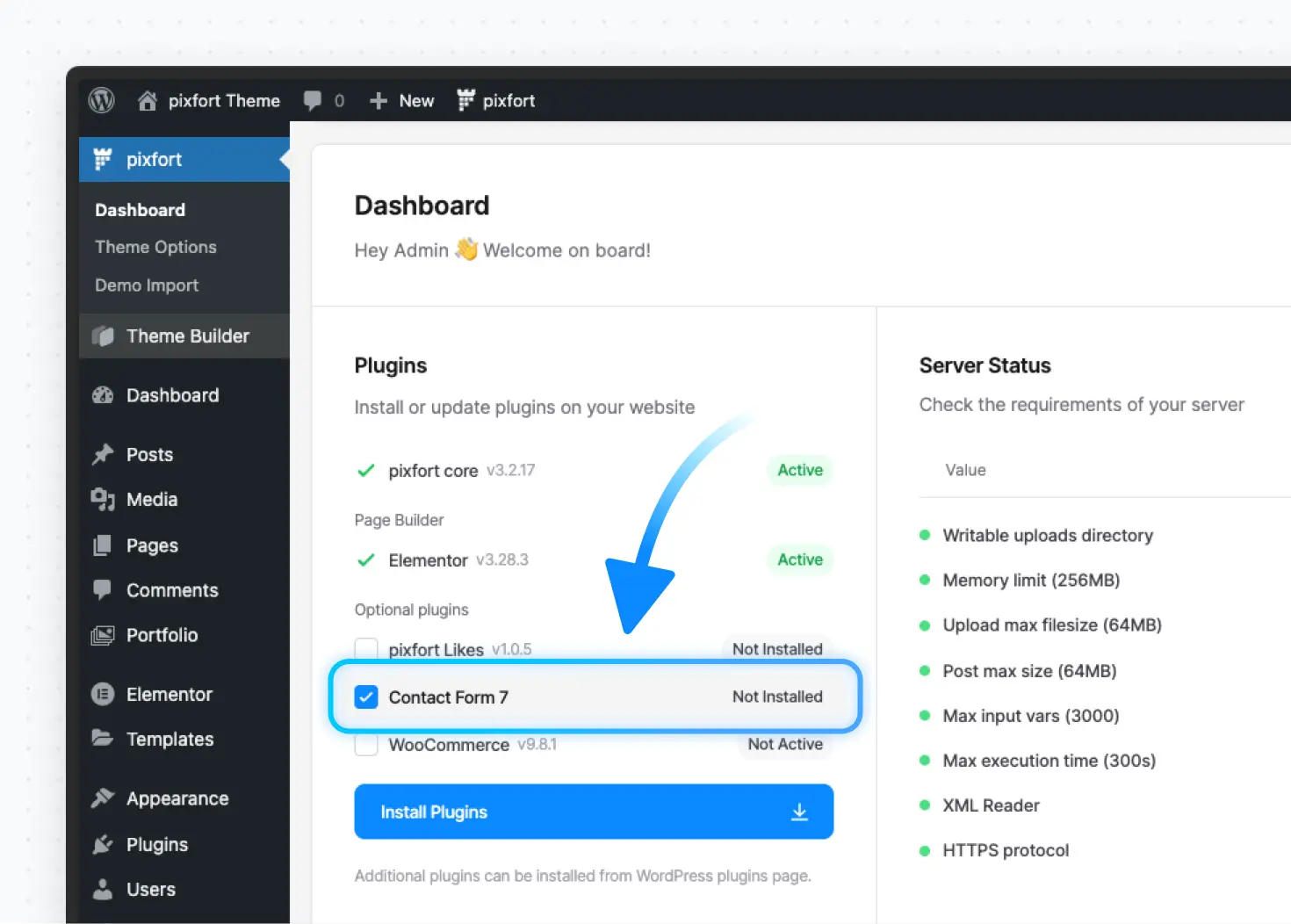
Appearance > Menus
Alternatively, you can install it manually from WordPress Admin Panel > Plugins > Add New by searching for “Contact Form 7”, then clicking Install Now and Activate.
After activating the plugin, you can access Contact Form 7 plugin from
WordPress Admin Panel > Contact
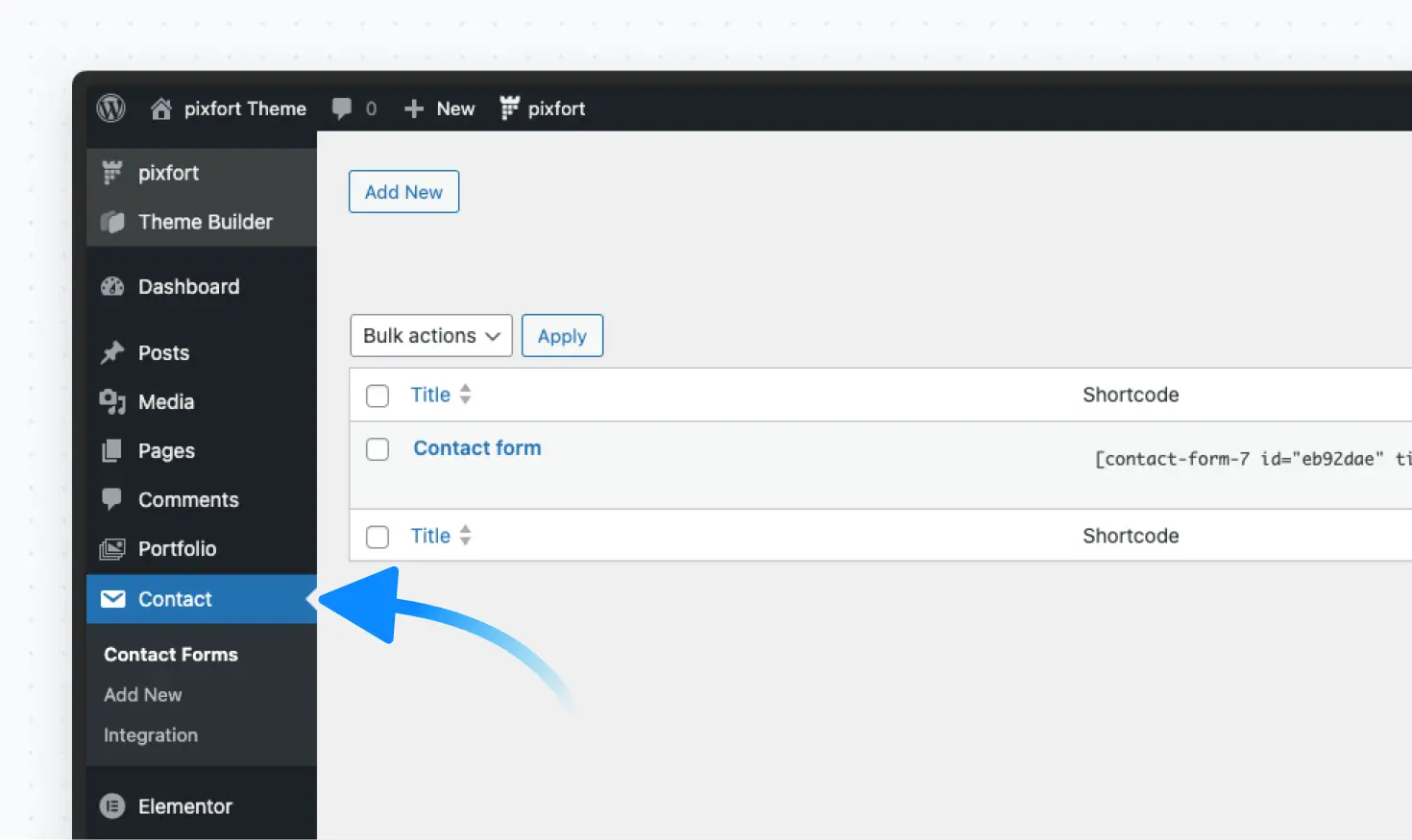
WordPress Admin Panel > Contact
Create and Edit Your Forms
Good to know
You can import premade Contact Form 7 templates from:
pixfort > Demo Import > Contact Form 7
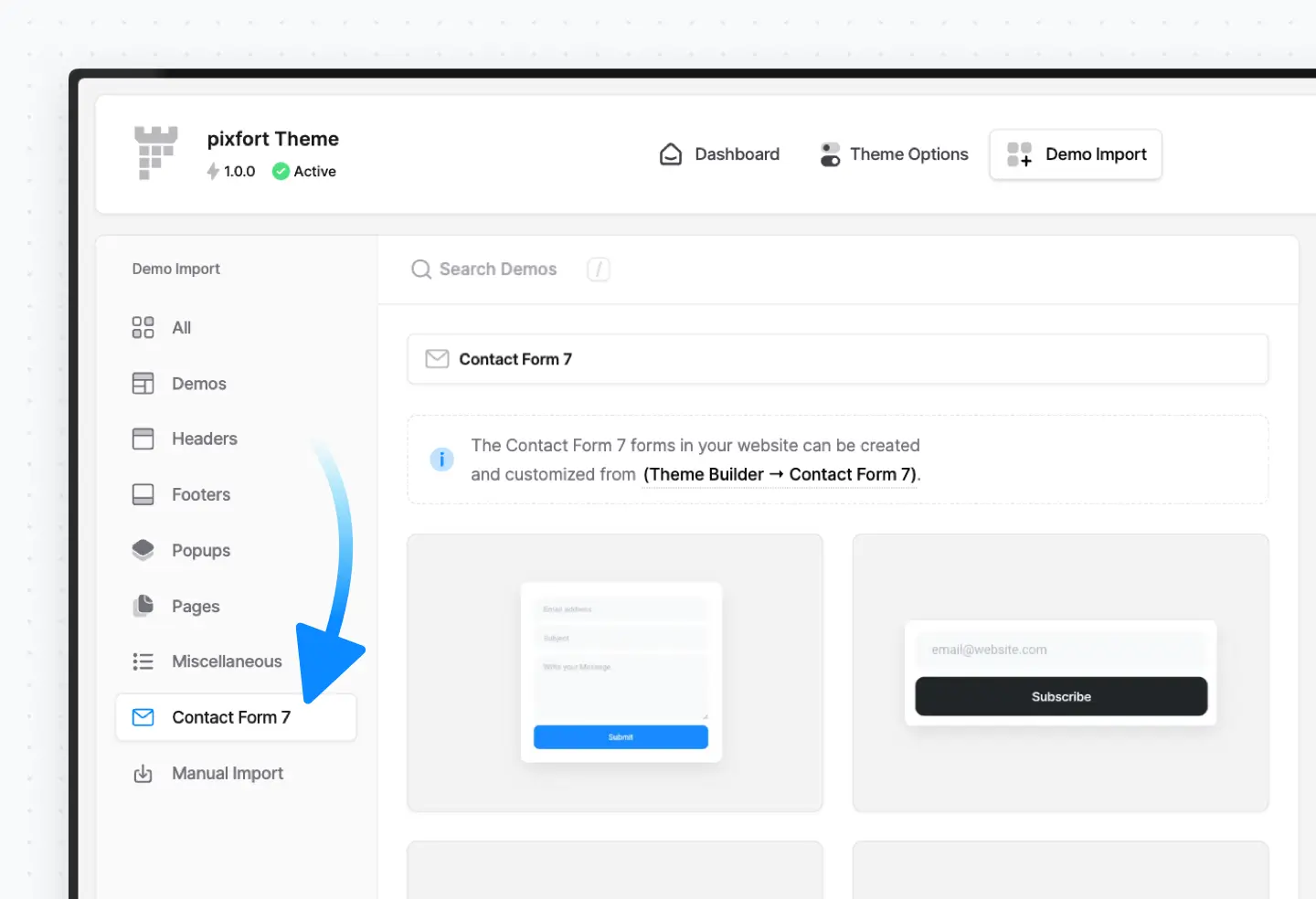
pixfort > Demo Import > Contact Form 7
You can add a new form from Contact > Add New, or you can check and edit existing forms:
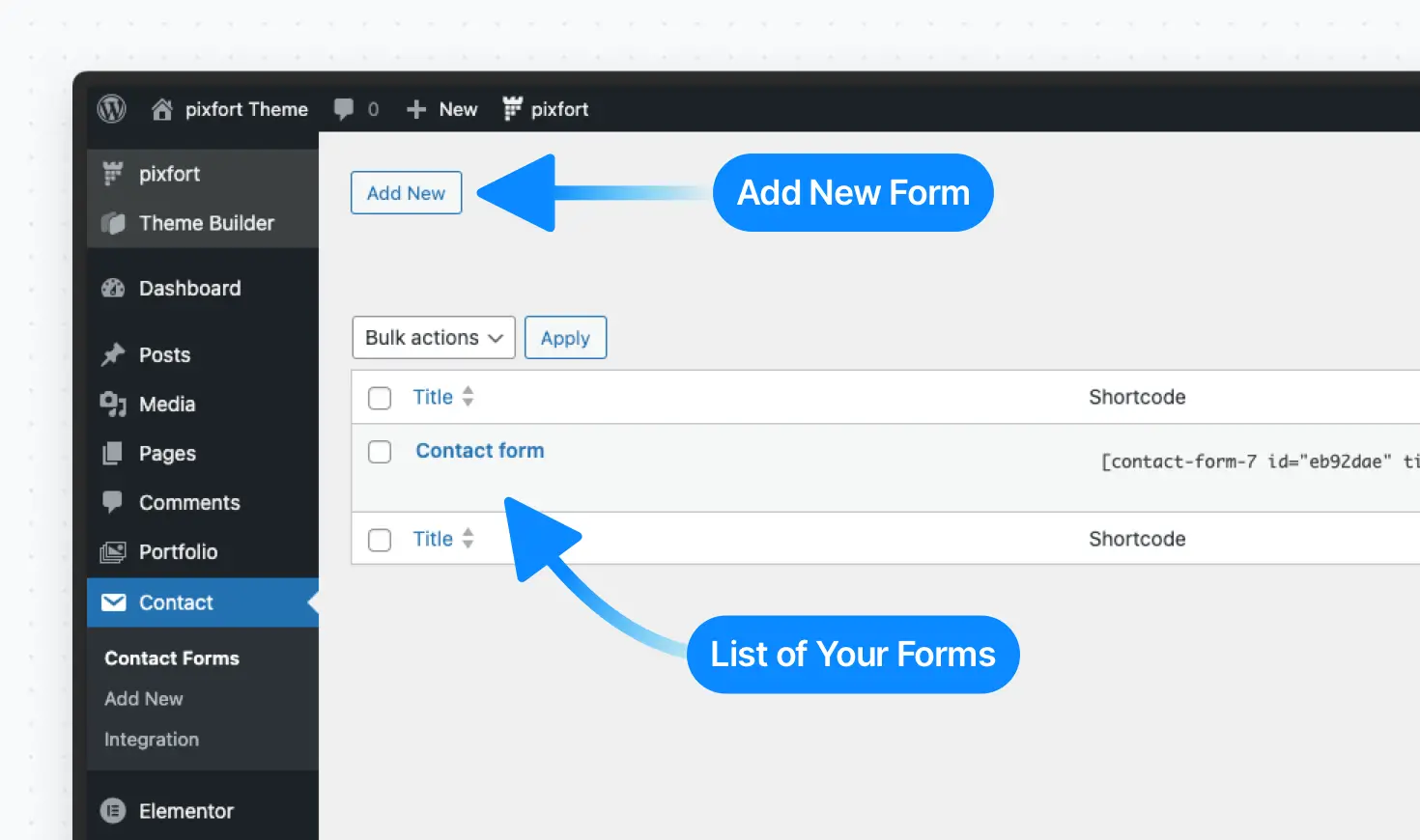
Add New Form or Check Existing Forms
From the form page, you can customize the form as needed — you can add fields or HTML using Contact Form 7 shortcodes:
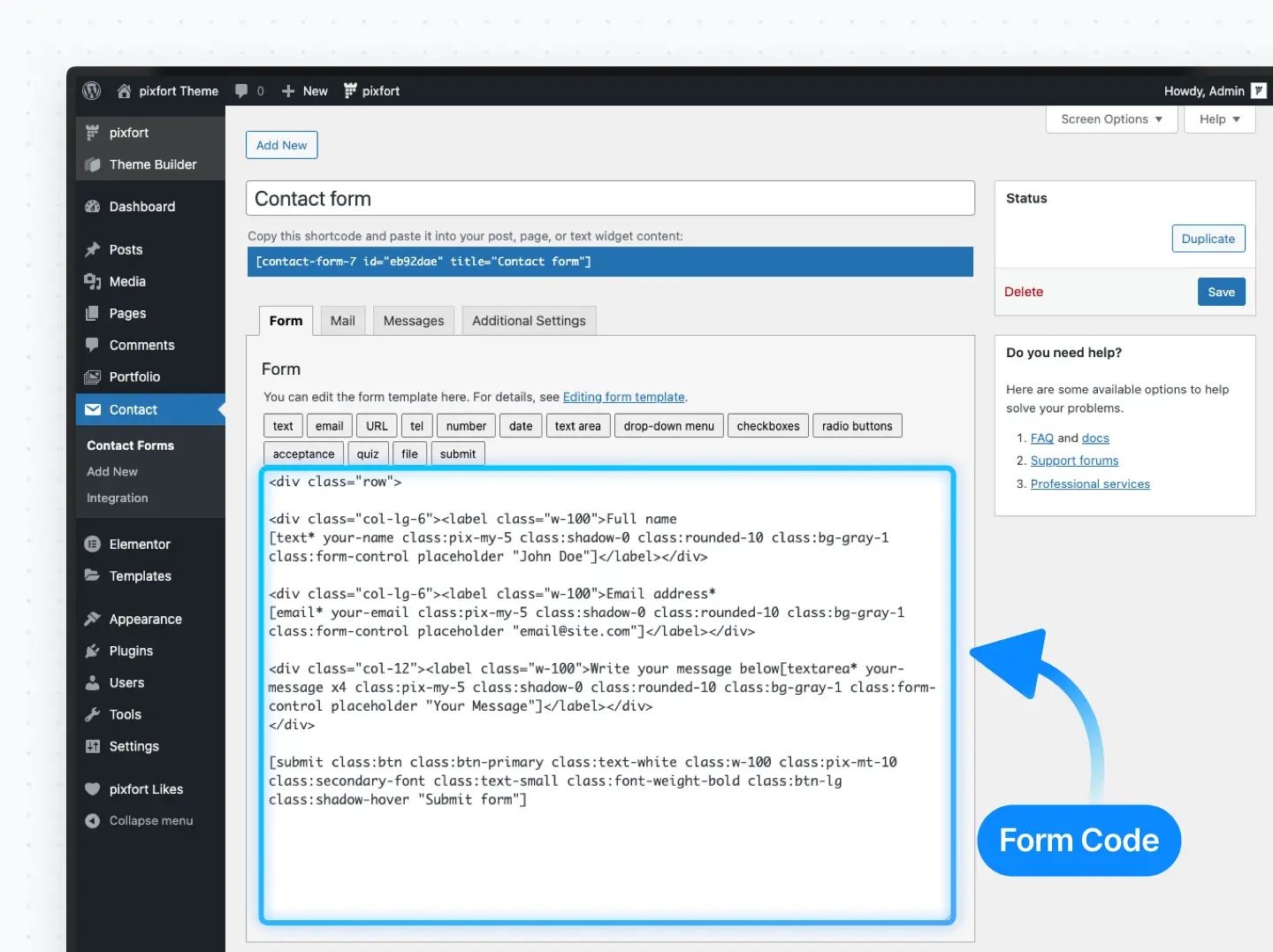
Form Page
After you finish building the form, you can Save the form.
Contact Form 7 Styling
For detailed information about styling and customizing Contact Form 7 forms, please check the article below:
Add the Form in Elementor
To add your form in Elementor:
Copy Form Shortcode

Copy Form Shortcode
Edit the page, template, footer or popup with Elementor, and drag the Text Editor widget into your layout and paste the form shortcode

Add Form Shortcode in Elementor
Additional Help
For more information about on Contact Form 7, visit the their official documentation: