

Before getting started, make sure that the Contact Form 7 plugin is installed and activated.
If not, check out: How to Add Contact Form 7
Good to know
You can import premade Contact Form 7 templates from:
pixfort > Demo Import > Contact Form 7
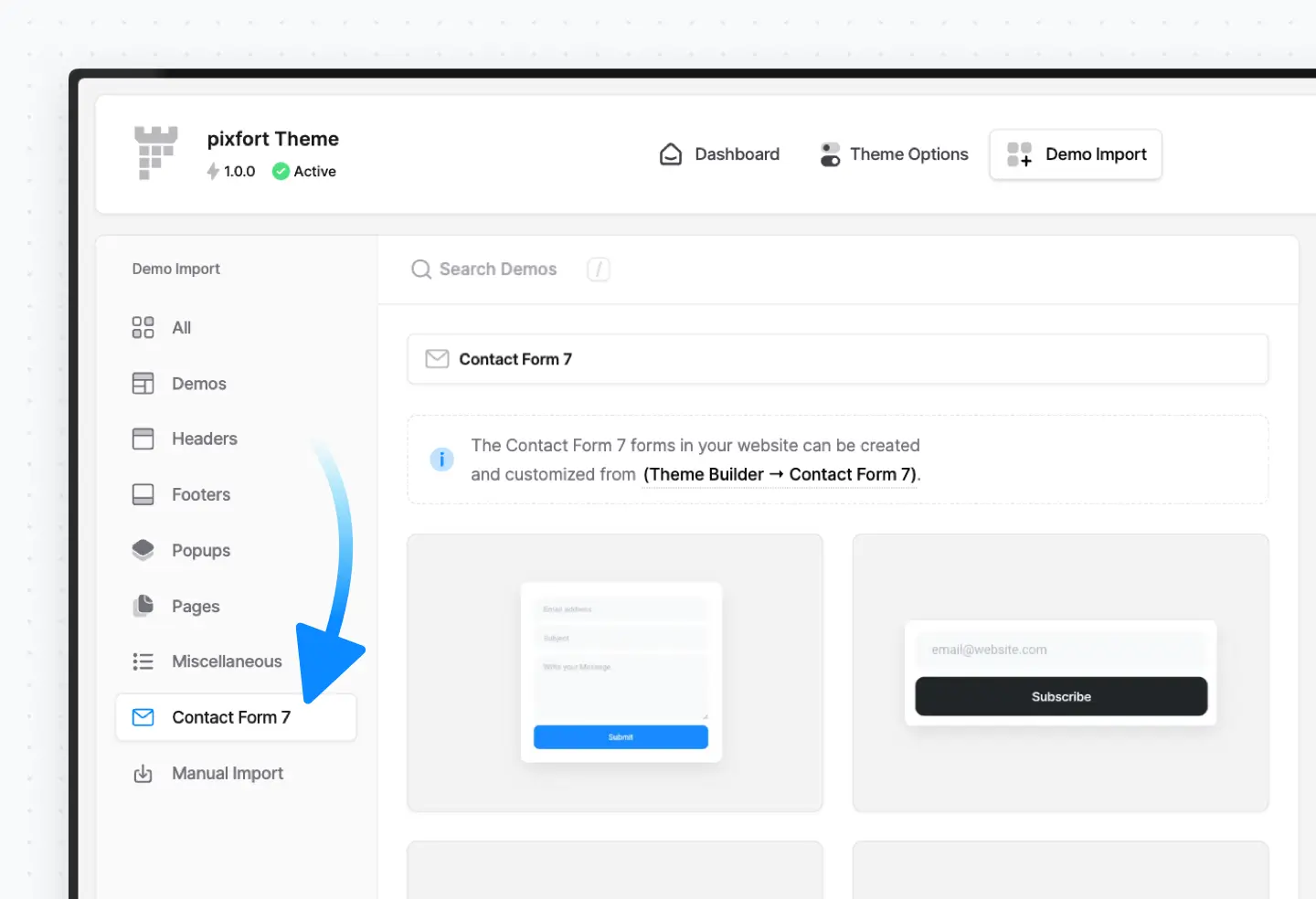
pixfort > Demo Import > Contact Form 7
Styling Forms
You can style Contact Form 7 using pixfort Custom Classes for spacing, background color, shadows, and more.
Useful related articles:
Example
The form below is an imported layout from the Demo Import > Contact Form 7 > Contact Form.
The code for the example form is:
<div class="row">

    <div class="col-lg-6">
        <label class="w-100">Full name
            [text* your-name class:pix-my-5 class:shadow-0 class:bg-gray-1 class:form-control placeholder "John Doe"]
        </label>
    </div>

    <div class="col-lg-6">
        <label class="w-100">Email address*
            [email* your-email class:pix-my-5 class:shadow-0 class:bg-gray-1 class:form-control placeholder "[email protected]"]
        </label>
    </div>

    <div class="col-12">
        <label class="w-100">Write your message below
             [textarea* your-message x4 class:pix-my-5 class:shadow-0 class:bg-gray-1 class:form-control placeholder "Your Message"]
        </label>
    </div>
</div>

[submit class:btn class:btn-green class:text-white class:w-100 class:pix-mt-10 class:font-weight-bold class:btn-lg class:shadow-hover "Submit form"]
Field Styling
Field Syntax
[text* your-name class:bg-gray-1 class:shadow-0 class:pix-my-5 class:form-control placeholder "John Doe"]
text*= field typeyour-name= field name (ID of the field)class:= apply CSS classes- Background Color:
class:bg-gray-1 - No Shadow:
class:shadow-0 - Spacing:
class:pix-my-5 - Default Field Style:
class:form-control
- Background Color:
Check CSS Classes Article from more classes
placeholder "John Doe"= field placeholder text
To customize the color of the fields placeholder text, add this CSS in:
Theme Options > Layout > Advanced > Custom CSS
.wpcf7 input::placeholder,
.wpcf7 textarea::placeholder {
    color: #495057;
}
Replace the color value with your desired color.
Field Label
To add a label for a field, wrap the field shortcode inside a <label> tag.
We recommend using the class w-100 on the <label> to make the label and its field span the full width of the container.
Example:
<label class="w-100">Full Name
    [text* your-name class:form-control placeholder "John Doe"]
</label>
Textarea Field
To control the height of a textarea field, use the x{number} attribute to define how many rows it displays.
In the following example, x5 means 5 rows in height
[textarea* your-message x5 ...]
Form Layout
You can use the Bootstrap Grid system to place fields side by side inside rows.
Example: Two fields in a single row (each takes 6 columns):
<div class="row">
    <div class="col-lg-6">
        ... First field ...
    </div>
    <div class="col-lg-6">
        ... Second field ...
    </div>
</div>
rowcreates a 12-column layout containercol-lg-6gives each field 6/12 columns on large screens- On tablets and mobile, these stack vertically by default
If you’re not familiar with the Bootstrap grid, check this guide.
Button Styling
Here’s the example used in the form above:
[submit class:btn class:btn-green class:text-white class:w-100 class:pix-mt-10 class:font-weight-bold class:btn-lg class:shadow-hover "Submit form"]
btn— Base button classbtn-green— Green color (choose from the available pixfort colors like btn-blue)text-white— White text color (choose from the available pixfort colors)w-100— Makes button full-widthpix-mt-10— Adds top marginbtn-lg— Large buttonfont-weight-bold— Bold textshadow-hover— Adds hover shadow effect
Optional Button Classes:
btn-rounded— Adds rounded cornersbtn-outline-*— For outline button variants (optional)
Additional Help
For more advanced functionality or shortcode reference, visit the official Contact Form 7 documentation:


