
How to Access Headers
The headers are part of the Theme Builder. You can find the headers of your website from Theme Builder > Headers. For example:
Theme Builder > Headers
Import a Premade Header
You can easily import one of the pre-made headers directly from your WordPress admin panel by navigating to pixfort > Demo Import > Headers. For example:
pixfort Theme > Demo Import > Headers
Create a New Website Header
To create a new header, go to Theme Builder > Headers, then click on Add New Header Item.
Give your header a name, and start building it using the drag-and-drop header builder.
Theme Builder > Headers > Add New Header Item
Edit Header Elements
You can edit header elements by clicking on them, which will open the Element Settings Panel.
For example:
Header Builder > Edit Elements
Header Areas
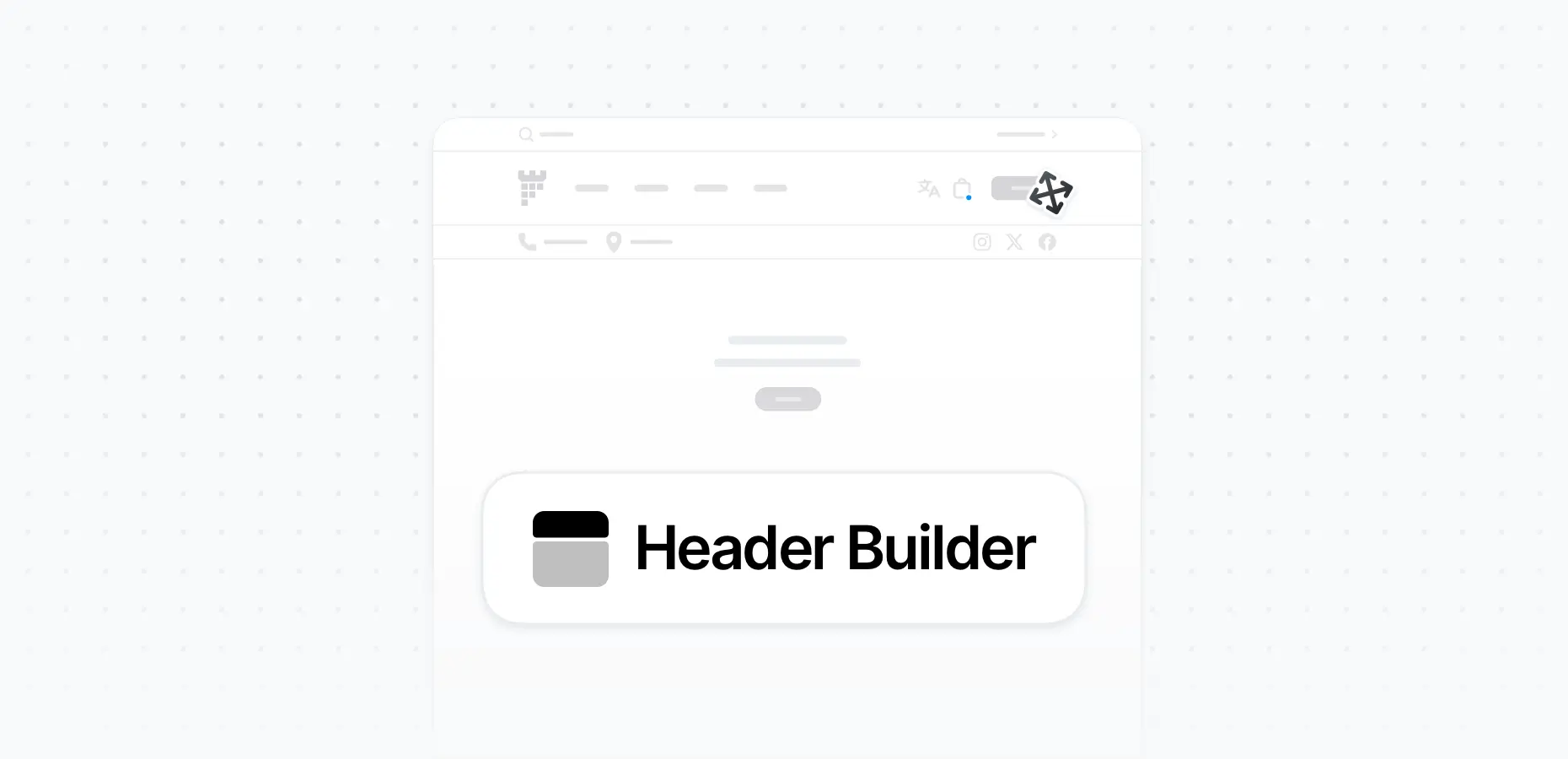
The header consists of 3 areas:
- Top Bar Area
- Main Area
- Stack Area
You can access the settings of each area individually, where you can customize the background and text color, shadow, border radius, sticky option, and more.

Header Builder > Area Settings
Sticky Header Areas
You can set each header area to be sticky individually from the Settings Panel of that specific area:

Theme Options > Layout > Header > Website Header
Area Columns
Each header area can contain up to three columns.
- To add a column, click the plus (+) button.
- To remove a column, hover over it and click the red trash button.
You can access the settings of each column individually by hovering over it and clicking the Column Settings button. From there, you can customize the element alignment, column size, background and text color, padding and margin, border radius, and more.
Header Builder > Column Settings
Header Style
Below the Header Builder, you’ll find options to control the Header Style (for example: Default, Overlap, etc.), Desktop Container Width, and the option to choose the Secondary (Heading) font for all header elements.

Theme Options > Layout > Header > Website Header
Tablet & Mobile Header Version
You can edit the Tablet & Mobile header version by switching to Tablet & Mobile tab and using the header builder the same way as you do for the desktop version.
Header Builder > Switch Header Version
Header Logo
You can add your logo to the header by inserting the Logo element.
The default website logo and scroll logo set in Theme Options > Settings > General will appear automatically. However, you can override these images directly in the Header Builder by clicking on the Logo element to open its settings.

Header Builder > Logo Element
For more details about website logo, see the article: How to Add or Change Website Logo.
Preview Mode
Click on the Preview Mode button to enter preview mode. This will expand the header builder to full screen and display a live preview of your header, allowing you to visualize changes instantly without exiting the builder.
Header Builder > Preview Mode
Choose Global Website Header
You can set the default website header to be displayed across all pages by navigating to Theme Options > Layout > Header.

Theme Options > Layout > Header > Website Header
Display Header on Specific Pages
To display a header on specific pages instead of using the default global header for your entire website, simply edit the header, choose the desired Display Conditions, and save your changes.
Header Builder > Display Header Conditions
Disable Header on a Specific Page
To disable the header on a specific page, open the page in WordPress editing mode, set the Page Header option to Disable, and save your changes.

Edit Page > pixfort Options > Page Header > Disable
Related Articles
How to Create Menus?

Check the article below to learn how to create and edit menus using the default WordPress Menus
How to Change Menu and Dropdown Colors?
Check the article below to learn how to change menu and dropdown colors.
How to Add Social Icons to Header?

To add social icons in the header, first set your social network account links in Theme Options > Layout > Social Icons.
Once the links are added, the social icons will appear automatically in the header after you add the Social element in the Header Builder (Theme Builder > Headers > Edit Your Header).
Check the article below to learn how to add social icons to your website.