How to Create Menus

How to Create Menus

Creating and managing menus is simple using the default WordPress Menu Editor:
WordPress Dashboard > Appearance > Menus

There are two available menu layouts:

  1. Default Dropdown Menu
  2. Mega Menu — a default menu with wide dropdown layout

You can also create and add Menu Templates to both default dropdown menus and mega menus. Menu Templates are content layouts built with the Elementor page builder, similar to creating a regular page.

Once your menu is ready, assign it to any header via the Header Builder.

For header setup, see: How to Create and Edit Website Headers

1

Default Dropdown Menu

To create a standard dropdown menu:

  1. Go to Appearance > Menus
  2. Create or select a menu
  3. Add items (Pages, Posts, Categories, Custom Links, etc.)
  4. To create a dropdown:
    • Drag items slightly to the right under their parent to nest them
    • Supports up to 3 levels

Image link

Appearance > Menus

Image link

Example: Default Dropdown Menu

2

Mega Menu

The Mega Menu is the same as the default menu but allows you to create wider layouts with multiple columns, using the default WordPress Menus functionality:

Enable Mega Menu

  1. In Appearance > Menus, open the desired top-level menu item

  2. Check Enable Mega Menu

Image link

Top-Level Menu Item > Enable Mega Menu

Set Mega Menu Width

  1. Click Menu Item Options

  2. Select your preferred Mega Menu Size (Full Width, Container Width, etc.)

Image link

Menu Item Options

Image link

Mega Menu Size Option

Add Columns & Items

To add a column inside a mega menu:

  1. Add a Custom Link (use # for URL, enter desired column title in Link Text)
  2. Nest it under the main Mega Menu item (second level)
  3. Check Convert to Column Item
  4. Adjust column width, padding and border. You can also hide the column title

The Mega Menu layout is based on a 12-column grid.

If total column widths exceed 12, columns will wrap to the next row.

To add links inside the column:

  • Add menu items as third-level items under the column item
  • These appear as regular links in the column

Image link

Add Column Item

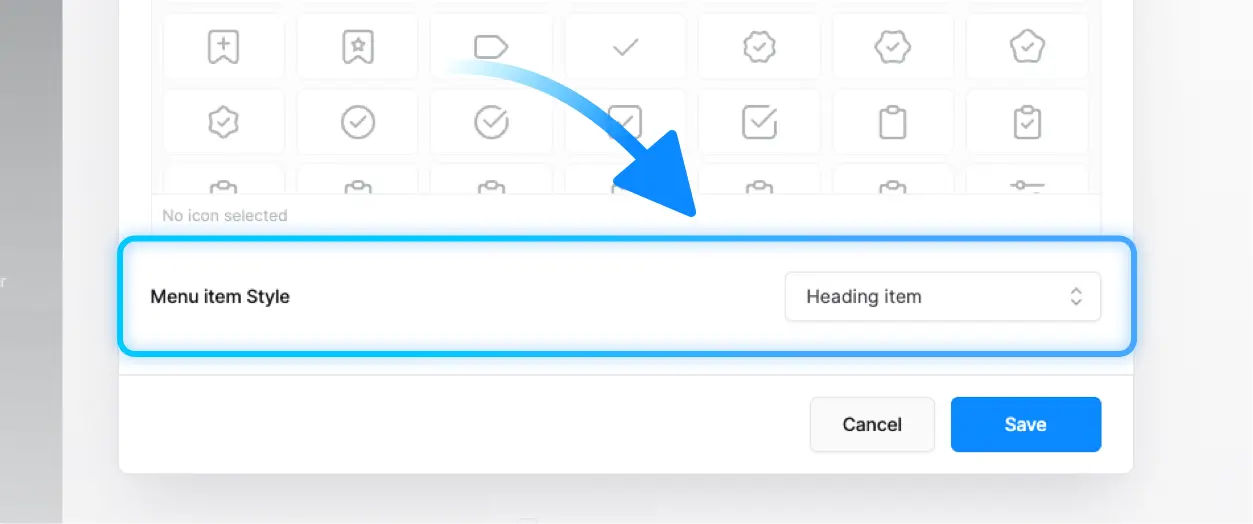
Add Multiple Headings in a Column

You can add multiple titles in the same column:

  1. Add a menu item under the column
  2. Open Menu Item Options
  3. Set it as a Heading Item

Image link

Menu Item Options > Menu Item Style

Image link

Example: Multiple Headings in a Column

Add Icons to Menu Items

To add icons:

  1. Open Menu Item Options for any item
  2. Select an icon from the icon library

Icons will not display for items converted to Box Items

Image link

Menu Item Options > Icon

You can create banner-style menu items in the Mega Menu using Box Items:

  1. Add a sub-item under a column
  2. Open the Advanced menu item Options
  3. Enable the option Convert to Box Item
  4. Set the Title, Text, and choose an Image
  5. Customize the box height, style, and text color as needed

Image link

Add a sub-item under a column > Advanced menu item Options

Image link

Enable Convert to Box item option, then set the title, text, and choose an image

Image link

Example: Mega Menu Structure Overview

Image link

Example: Mega Menu with Banner

To use a video background instead of an image:

  1. Copy the video URL (Self-hosted .mp4 files only).
  2. Paste it in the Background field of the Box Item

YouTube and external video services are not supported

Example: Mega Menu with Video Banner

Menu Templates

How to Add a Menu Template to a Dropdown Menu:

  1. Go to Theme Builder → Templates → Add New Template
  2. Create your template and customize the content using Elementor
  3. Navigate to WordPress Admin Panel → Appearance → Menus
  4. Add to your dropdown a new Custom Link item (set the URL to # and enter any Link Text used only to identify the item)
  5. Open the Advanced Menu Item Options panel
  6. Set Item Type to Template
  7. Select your previously created Menu Template

Image link

Step 5: Advanced menu item Options

Image link

Step 6 and 7: Advanced menu item Options > Item type > Template

Create a Custom Menu Popup

You can build your own custom menu layout using the Popup Builder. To do that:

  1. Create a new popup
  2. Add links and any additional elements you need
  3. Set the popup to open from a custom link in your header or page

This allows you to fully customize the menu experience with your own layout, styles, or design.

For detailed steps on how to create and customize popups, you can refer to this article:

You can also explore some great examples of premade menu popups available for import by visiting the Popup Builder preview page:
https://core.pixfort.com/popup-builder

pixfort
pixfort
Support Team

Hey, this is pixfort support team, if you still need help you can always reach us via your pixfort account

Related Posts

Search

Start typing to search for a specific article on our website

Made with Popup Builder
Image link
Hey there

Search for a specific article

Get started

Check useful guides to get started

Still need Help?

Send us a support message

Our usual reply time: 1 Business day